
Every field program has a process that lives in someone’s inbox. A form comes in, someone reads it, forwards it to another team, waits for a reply, and then passes the result back to the person who started it. It works until it doesn’t.
One of our clients, a consumer-products brand that runs in-store demo events, brought us exactly that kind of process. This is the story of how we moved it into ZenShows. It’s also a look at why we think Form Workflows can run just about any process a brand needs.
The challenge
Sometimes product arrives damaged at an event. When that happens, the rep fills out a damages form in the ZenShows app, listing which items were damaged or are being returned, how many, and any notes.
Submitting the form was easy. What came after was not:
- Someone at headquarters had to read the form and decide whether it was complete.
- The details had to be forwarded to the logistics team, who make return shipping labels.
- The label had to come back and reach the right rep for the right event.
Every handoff happened over email. Requests sat unread, labels went to the wrong place, and nobody could easily see which returns were stuck or where.
The brand asked us a simple question: can ZenShows run the whole thing?
How we met it
We didn’t build a one-off tool. We put the brand’s process together from Form Workflows, the same review queue their team already uses to approve other forms.
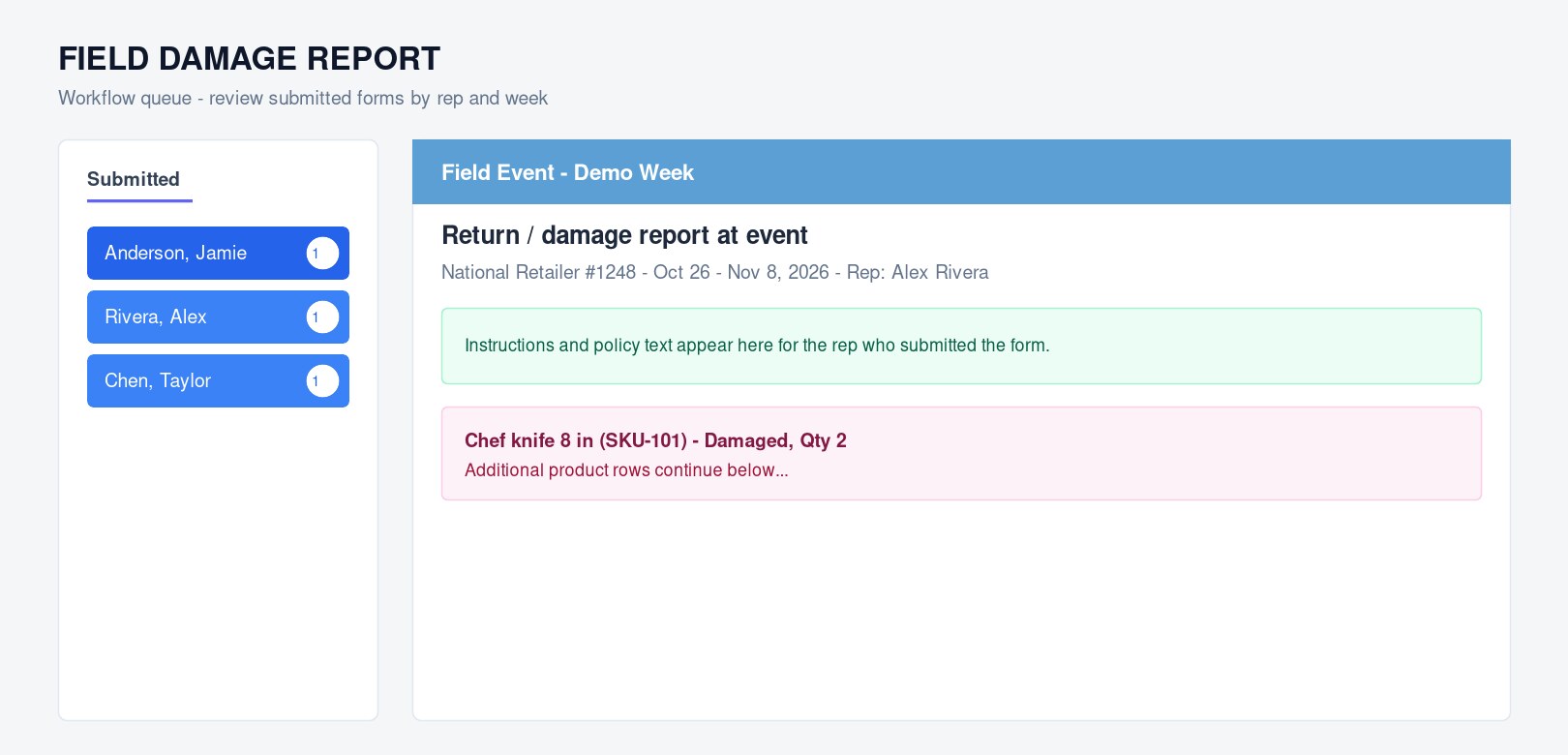
Here’s the flow they run today:
- The rep submits the damages form from the app, exactly as before.
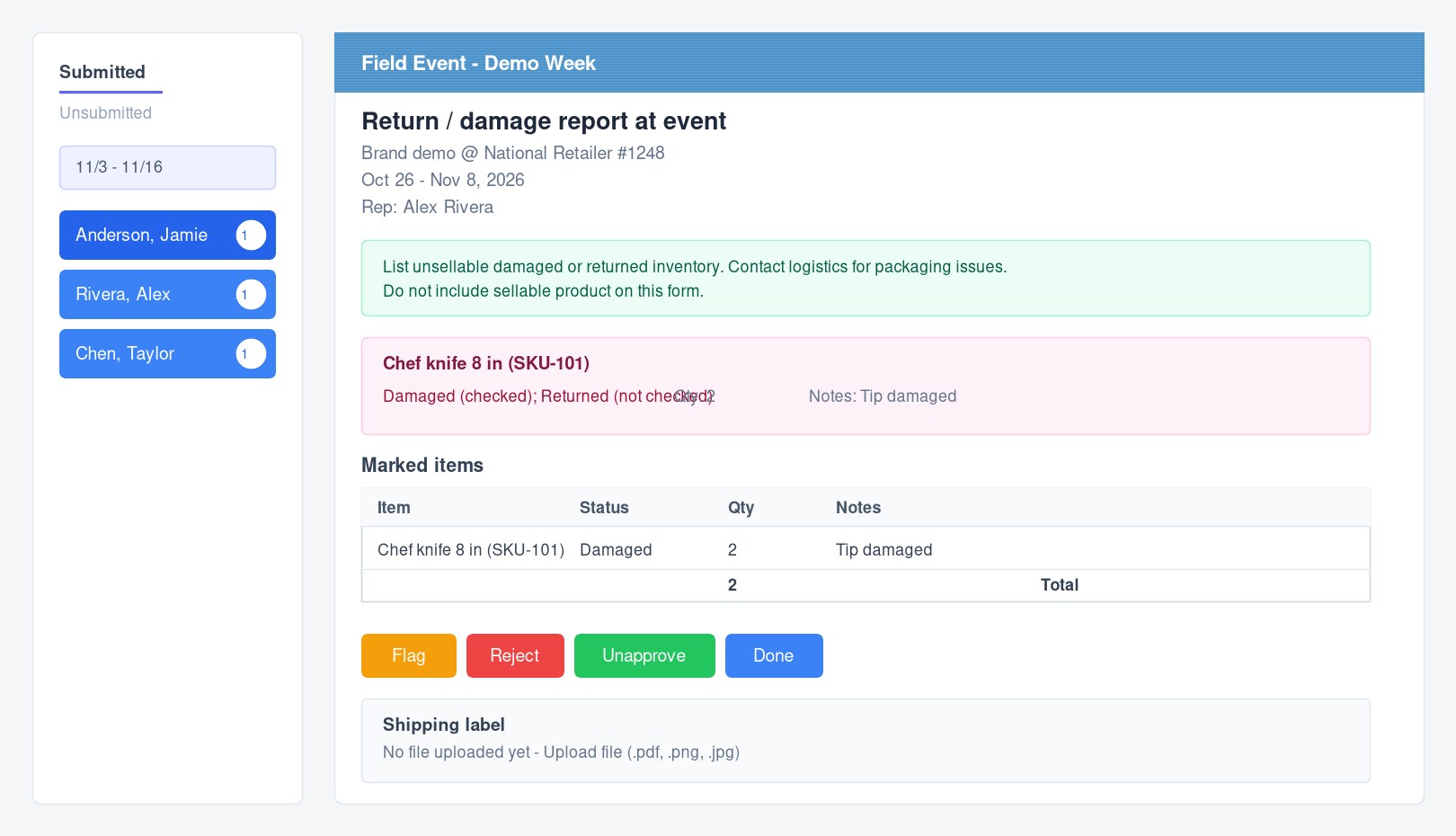
- Staff review it in the workflow. A clean summary sits right on the card. It lists only the items the rep actually marked, with their status, quantity and notes, plus a total count at the bottom. Staff can Flag the form if they need more information or Reject it.
- Approve sends the request to logistics. One click emails the logistics team the item summary, the rep’s name, the event location and dates, and a button that opens that exact form in ZenShows.
- Logistics uploads the label right on the form. Once a form is approved, a shipping-label upload box appears on it. The file is stored privately with that one form, not passed around in email threads.
- Done sends the label to the rep. A new Done button only becomes available once a label has been uploaded. Clicking it emails the rep the label as an attachment, along with a summary of what they’re sending back.
Every step leaves a note in the form’s history, so anyone can see who approved it, when the label was requested, and when it went out.
Built from reusable building blocks
This is the part we’re most excited about. None of the new behavior is custom code tied to one brand. Each piece is a general-purpose workflow building block that we can set up for any workflow, for any client:
- Step rules. A workflow can require one step before another, so there’s no Done before Approve. It can also stop a step from being undone once a later step has happened, so you can’t un-approve after the label has gone out. When a button isn’t available, it says why.
- File slots. Any workflow can add a secure upload box to its forms, such as a label, an invoice, a signed document or a photo. You decide when the box appears, when it locks, and whether a step needs a file before it can be completed.
- Smart notifications. Any step can email anyone: the rep, the staff member who clicked, or a fixed team inbox. The email can include a summary of the form, a direct link and uploaded files. If someone undoes a step, a follow-up email can tell everyone to disregard the first one.
- Direct links. Emails can link straight to one form inside the workflow queue. It opens to the right week and the right person, with the form highlighted.
Combined, these blocks cover a lot of ground. Here are a few processes they could run:
- Purchase approvals that need a signed PO uploaded before they close.
- Event recaps that go to the client automatically once a manager approves them.
- Incident reports that route to a safety team with photos attached.
- Equipment returns that need a tracking document before they’re marked complete.
Why it matters
The brand’s team didn’t have to change how their reps work or learn a new system. The process they already had simply moved inside ZenShows, where it’s visible, tracked, and hard to get wrong.
- Multi-step, multi-team processes run inside the workflows you already use.
- Outside teams, like logistics or finance, get a clear request by email and finish their part in ZenShows.
- Files live securely with the form they belong to.
- Step rules keep forms moving in the right order and prevent accidental undos.
- Every action is recorded, so it’s always clear where a form stands and who handled it.
Have a process like this?
If a form submission at your company kicks off work for more than one person or team, we’d love to hear about it. Write down the steps: who reviews it, who needs to know, what files are involved, and what “done” looks like. Then send it to us through the platform or at hello@zenshows.com. We’ll map it onto workflow building blocks and set it up for your account.